
Setting Up Conference Room Tech Setup in Dallas
Setting up a conference room for video conferencing can feel overwhelming. But it doesn’t have to be. With the right approach, you can create a space that works smoothly and impresses everyone. Whether you’re upgrading an existing room or starting fresh, I’ll walk you through the key steps. This guide focuses on practical tips for conference room tech setup that fits Dallas businesses and homeowners alike.
Why Good Conference Room Tech Setup Matters
You might wonder, why put so much effort into a conference room? The answer is simple. A well-set-up room saves time, reduces frustration, and boosts productivity. When technology works seamlessly, meetings flow better. People stay engaged. Decisions get made faster.
Think about your last video call. Did the sound cut out? Was the video blurry? Did someone struggle to share their screen? These common issues happen when the setup is rushed or incomplete. Avoiding these problems starts with planning.
A good setup includes clear audio, sharp video, easy controls, and reliable internet. It also means choosing the right room size and layout. When you get these basics right, your conference room becomes a powerful tool for communication.
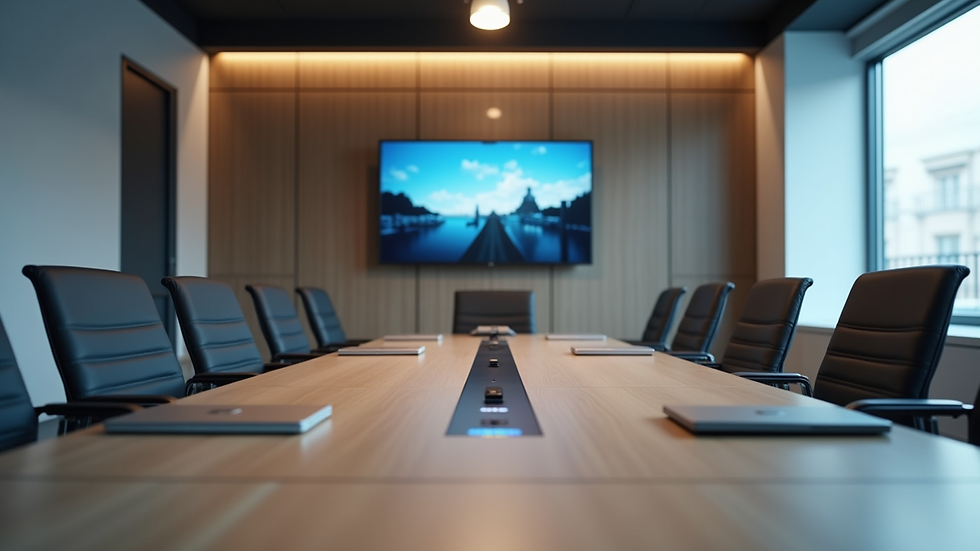
Key Components of Conference Room Tech Setup
Let’s break down the essential parts of a conference room tech setup. Each piece plays a role in making your meetings effective.
1. Display Screen
The screen is where everyone sees the video feed, presentations, and shared content. Choose a screen size that fits your room. For small rooms, a 55-inch screen might work. Larger rooms may need 75 inches or more.
Consider a 4K display for crisp images. Make sure the screen is visible from all seats. Mount it at eye level for the best view.
2. Camera
A good camera captures everyone in the room clearly. Look for cameras with wide-angle lenses and pan-tilt-zoom features. This allows the camera to focus on whoever is speaking or move to show the whole room.
Position the camera near the screen, at eye level. Avoid placing it too high or too low.
3. Microphones and Speakers
Clear audio is critical. Use multiple microphones spread across the table to pick up voices evenly. Ceiling or table mics work well.
Speakers should deliver sound clearly without echo or distortion. Test the audio in the room before finalizing the setup.
4. Video Conferencing System
Choose a system that integrates well with your existing software like Zoom, Microsoft Teams, or Google Meet. The system should be easy to use and reliable.
Some setups include a dedicated codec box, while others use a computer or smart device. Make sure the system supports high-definition video and audio.
5. Network and Connectivity
A strong internet connection is a must. Use wired Ethernet connections for stability. If Wi-Fi is necessary, ensure the signal is strong and secure.
Consider a dedicated network for video conferencing to avoid interruptions.
6. Control System
A simple control panel or tablet can make managing the tech easy. Users should be able to start calls, adjust volume, and switch inputs with a few taps.
Avoid complicated setups that require technical knowledge.
Designing the Room for Video Conferencing
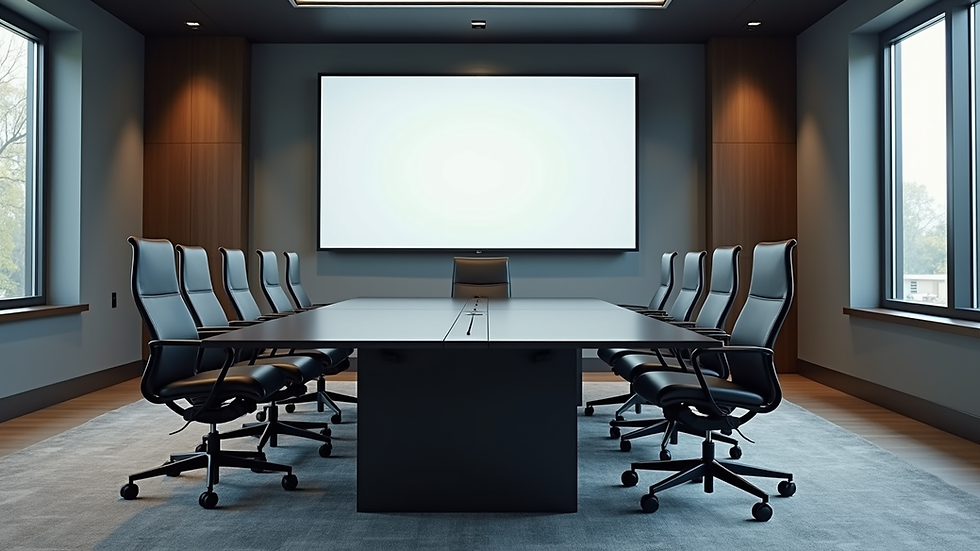
The physical space matters just as much as the technology. Here are some tips for designing your conference room.
Room Size: Match the room size to the number of participants. Too small feels cramped; too large can cause audio issues.
Lighting: Use soft, even lighting. Avoid harsh overhead lights or bright windows behind the screen.
Acoustics: Add sound-absorbing materials like carpets, curtains, or acoustic panels to reduce echo.
Furniture: Choose a table shape that promotes eye contact. Round or oval tables work well.
Cable Management: Keep cables tidy and out of sight to avoid tripping hazards and clutter.
These design choices improve the overall experience and make your tech setup more effective.
How to Choose the Right Equipment in Dallas
Dallas has many options for AV equipment, but choosing the right gear can be tricky. Here’s how to make smart choices.
Local Support: Pick vendors who offer local support and installation. This saves time and hassle.
Scalability: Choose equipment that can grow with your needs. You might start small but expand later.
Compatibility: Ensure all devices work well together. Check software compatibility and hardware connections.
Budget: Balance quality and cost. Don’t skimp on critical components like microphones and cameras.
Reviews and Demos: Test equipment before buying. Ask for demos or trial periods.
By focusing on these factors, you’ll get a setup that fits your Dallas location and business needs.
Setting Up and Testing Your Conference Room
Once you have your equipment and room ready, it’s time to set up and test everything.
Install Equipment: Mount screens, cameras, and microphones securely. Connect all cables neatly.
Configure Software: Set up video conferencing accounts and software. Test login and permissions.
Run Test Calls: Schedule test meetings with colleagues. Check video quality, audio clarity, and screen sharing.
Adjust Settings: Tweak camera angles, microphone sensitivity, and speaker volume as needed.
Train Users: Provide simple instructions or training sessions. Make sure everyone knows how to use the system.
Testing is crucial. It helps catch issues before important meetings.
If you want expert help, consider professional installation services. They can handle complex setups and ensure everything works perfectly.
For those looking for reliable solutions, Conference room video conferencing setup Dallas offers tailored services to meet your needs.
Keeping Your Conference Room Tech Up to Date
Technology changes fast. To keep your conference room running smoothly, regular maintenance and updates are key.
Software Updates: Keep your video conferencing software and firmware current.
Hardware Checks: Inspect cables, connectors, and devices for wear or damage.
Clean Equipment: Dust screens, cameras, and microphones regularly.
User Feedback: Ask users for feedback to spot issues or improvement areas.
Plan Upgrades: Schedule periodic reviews to upgrade outdated equipment.
Staying proactive prevents downtime and keeps your meetings professional.
Making Your Conference Room Work for You
A well-set-up conference room is more than just tech. It’s about creating a space where ideas flow and connections happen. When you invest in the right equipment, design, and support, you get a room that works every time.
Remember, the goal is simplicity and reliability. Keep controls easy, audio clear, and video sharp. Test often and listen to users.
If you follow these steps, your conference room will be ready for any meeting, big or small. And in Dallas, where business moves fast, having a dependable video conferencing setup is a real advantage.
Start planning your conference room tech setup today. The right setup makes all the difference.
Smart AV Tech | info@smartavtech.com | smartavtech.com | 972-802-2051 | Dallas Fort Worth, TX


Comments